


Antennas, Antenna Cables, Wireless Products: Technical Articles
How to Change Your WiFi Channel (And Why It Fixes Slow Internet)
Table of Contents
- What Is a WiFi Channel?
- Before You Change: Find the Least Congested Channel
- How to Change Your WiFi Channel: Step-by-Step
- 2.4 GHz vs. 5 GHz: Which Should You Change?
- Channel Width: 20 MHz vs. 40 MHz vs. 80 MHz
- When a Channel Change Isn't Enough
- Quick Reference: Best WiFi Channels by Band
- Frequently Asked Questions
- Still Having WiFi Problems? It May Be Your Hardware
If your WiFi is slow, dropping connections, or struggling to reach certain rooms, there's a good chance you're sharing a congested channel with your neighbors' routers. Changing your WiFi channel takes less than five minutes and can dramatically improve performance — no new hardware required. This guide walks you through exactly how to do it, which channels to choose, and when a channel change alone won't be enough.
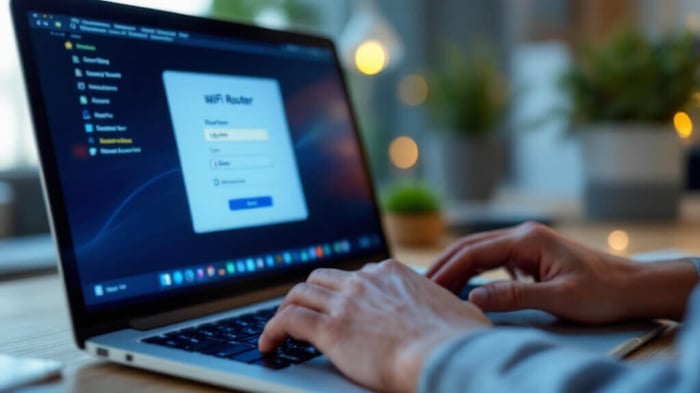
What Is a WiFi Channel?
WiFi doesn't transmit on a single frequency — it uses a slice of the radio spectrum called a channel. Think of channels like lanes on a highway. If every router in your building is using the same lane, traffic backs up. Switching to a less-congested channel gives your data its own clear path.
The two most common WiFi bands each have their own channel structure:
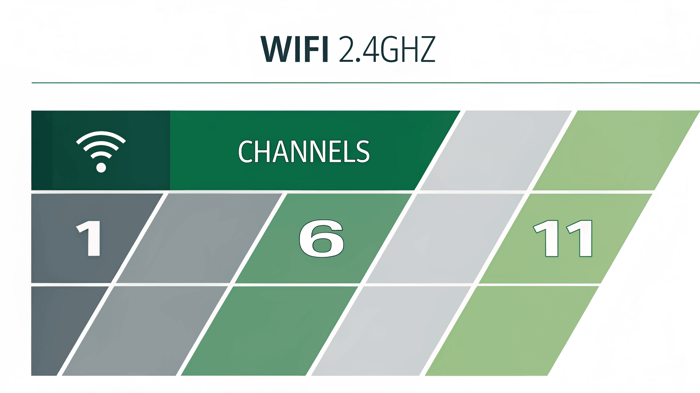
- 2.4 GHz: 11 usable channels in the US (1–11). Only channels 1, 6, and 11 are non-overlapping — meaning they don't interfere with each other. Always choose one of these three.
- 5 GHz: 25+ non-overlapping channels available (36, 40, 44, 48, 149, 153, 157, 161, 165 and more). Far less congested than 2.4 GHz in most environments.
Before You Change: Find the Least Congested Channel
Don't just guess — scan your environment first. Free tools that show you which channels nearby networks are using:
- Windows: WiFi Analyzer (free, Microsoft Store)
- Mac: Hold Option and click the WiFi icon → Open Wireless Diagnostics → Window menu → Scan
- Android: WiFi Analyzer by farproc (free, Google Play)
- iOS: Network Analyzer (free tier available)
Look at the results and pick the channel with the fewest competing networks — or the lowest signal strength from competing networks. On 2.4 GHz, stick to 1, 6, or 11. On 5 GHz, any channel showing no or weak competing networks is fine.
How to Change Your WiFi Channel: Step-by-Step
The process is the same for virtually every router — the menu labels just vary slightly by brand.
Step 1: Find Your Router's IP Address
Your router's admin panel is accessed through a web browser. The default IP address is printed on a sticker on the router itself — typically 192.168.1.1 or 192.168.0.1. You can also find it:
- Windows: Open Command Prompt → type ipconfig → look for "Default Gateway"
- Mac: System Preferences → Network → Advanced → TCP/IP → Router
- iOS/Android: Settings → WiFi → tap your network name → look for "Router" or "Gateway"
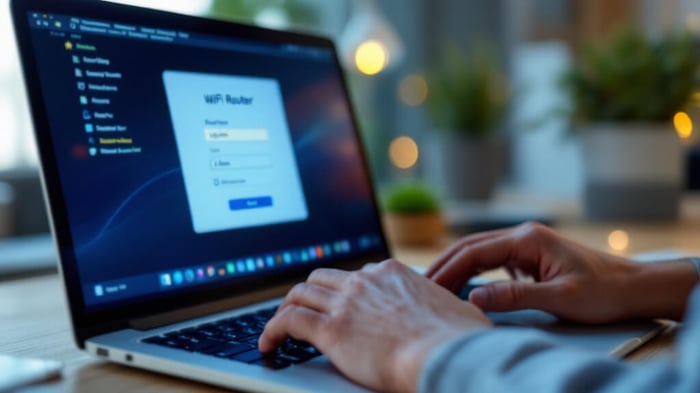
Step 2: Log Into the Router Admin Panel
Type the IP address into your browser's address bar (not the search bar). You'll see a login prompt. Default credentials are usually printed on the router label — commonly admin / admin or admin / password. If you've changed these and forgotten them, a factory reset will restore defaults (warning: this also resets your WiFi name and password).
Step 3: Navigate to Wireless Settings
Every router brand has slightly different menu naming. Look for one of these:
- Asus: Wireless → General
- Netgear: Advanced → Wireless Settings
- TP-Link: Wireless → Wireless Settings (separate tabs for 2.4 GHz and 5 GHz)
- Linksys: WiFi Settings → Advanced Settings
- Ubiquiti UniFi: Settings → WiFi → Edit network → Advanced
- Generic/ISP routers: Look for "Wireless," "WiFi," or "Radio" in the navigation menu
Step 4: Change the Channel
Find the Channel dropdown (sometimes labeled "Wireless Channel" or "Operating Channel"). It is likely set to Auto by default — Auto lets the router pick a channel at boot time, which often means everyone in the building ends up on the same auto-selected channel.
Select a specific channel manually:
- 2.4 GHz: Choose 1, 6, or 11 — whichever showed the least competition in your scan
- 5 GHz: Choose any non-overlapping channel with low competition. Channels 36–48 and 149–165 are the most commonly available in the US.
Step 5: Save and Apply
Click Save or Apply. The router will briefly restart its radio — your devices will disconnect for 5–10 seconds and automatically reconnect to the same network name on the new channel. No changes are needed on your devices.
2.4 GHz vs. 5 GHz: Which Should You Change?
| Band | Range | Speed | Congestion | Best For |
|---|---|---|---|---|
| 2.4 GHz | Longer | Lower | High (only 3 usable channels) | Long range, wall penetration, IoT devices |
| 5 GHz | Shorter | Higher | Low (25+ non-overlapping channels) | Speed-sensitive tasks, short range, dense environments |
In apartment buildings and dense office environments, 2.4 GHz channel congestion is almost unavoidable — every neighbor's router, microwave oven, Bluetooth device, and baby monitor competes for the same three channels. If speed and low latency matter, move your performance-sensitive devices to 5 GHz.
Channel Width: 20 MHz vs. 40 MHz vs. 80 MHz
While you're in the wireless settings, you'll likely see a Channel Width or Bandwidth setting alongside the channel selector. This matters:
- 20 MHz: Narrowest, least interference, best in congested environments. Recommended for 2.4 GHz.
- 40 MHz: Wider channel = more throughput, but occupies more spectrum. Use on 5 GHz in low-density environments.
- 80 MHz / 160 MHz: Maximum throughput (802.11ac/WiFi 5 and 802.11ax/WiFi 6). Only practical on 5 GHz or 6 GHz where spectrum is available.
On 2.4 GHz, set channel width to 20 MHz. A 40 MHz channel on 2.4 GHz overlaps with all three non-overlapping channels simultaneously, making interference worse for everyone in range.
When a Channel Change Isn't Enough
A channel change fixes congestion but won't solve every WiFi problem. If you've switched to the least congested channel and still have issues, the problem is likely one of these:
Weak Signal / Poor Range
If your router's signal doesn't reach where you need it, no channel will help. Solutions:
- Upgrade the router's antenna: Many routers have removable antennas with RP-SMA connectors. A higher-gain omnidirectional antenna (5–9 dBi) can significantly extend range. See Data Alliance WiFi antennas for compatible upgrades.
- Add a WiFi extender or mesh node: Extends coverage to dead zones.
- Move the router: Central location, elevated, away from metal objects and microwaves.
Too Many Devices on One Access Point
Consumer routers typically handle 20–30 simultaneous connections well. Beyond that, performance degrades. In dense environments (offices, warehouses, apartment complexes), enterprise access points with proper channel planning are the solution.
Building-to-Building or Long-Range Links
If you need to extend WiFi coverage to a detached building, outbuilding, or across a campus, a point-to-point link using directional antennas is far more effective than extending an indoor router. A pair of directional WiFi antennas or a Ubiquiti airMAX link can cover hundreds of meters reliably.
Outdated Hardware
802.11n (WiFi 4) routers are limited to 150–600 Mbps theoretical throughput. If your router is more than 5–7 years old, upgrading to 802.11ac (WiFi 5) or 802.11ax (WiFi 6) hardware will deliver meaningfully better performance, especially with multiple simultaneous clients.
Quick Reference: Best WiFi Channels by Band
| Band | Recommended Channels | Avoid | Width |
|---|---|---|---|
| 2.4 GHz | 1, 6, or 11 | 2–5, 7–10 (all cause overlap) | 20 MHz |
| 5 GHz (low) | 36, 40, 44, 48 | Auto (in dense environments) | 40–80 MHz |
| 5 GHz (high) | 149, 153, 157, 161, 165 | DFS channels (100–144) if radar interference is a concern | 40–80 MHz |
Frequently Asked Questions
Will changing my WiFi channel disconnect my devices?
Yes, briefly. Your devices will disconnect for 5–15 seconds while the router applies the new channel and restarts its radio. They will automatically reconnect — you don't need to re-enter your WiFi password or change any settings on your devices.
Should I use Auto channel selection?
Auto is convenient but unreliable in dense environments. Routers select their channel at boot time and don't re-evaluate continuously. In an apartment building where 20 routers all boot on the same day (after a power outage, for example), they may all land on the same "auto" channel. Setting a manual channel gives you control and consistency.
What's the difference between 2.4 GHz and 5 GHz channels?
2.4 GHz has 11 channels (US), but only 3 are non-overlapping (1, 6, 11) — so every 2.4 GHz network nearby is competing for just 3 lanes. 5 GHz has 25+ non-overlapping channels, making it far less congested. The trade-off is range: 5 GHz signals don't penetrate walls and floors as effectively as 2.4 GHz.
My router doesn't have a channel option — what do I do?
Some ISP-provided modems/routers lock down the admin interface and don't expose channel controls. Options: contact your ISP to request access, put the ISP modem in bridge mode and use your own router behind it, or upgrade to a router with full admin control.
How often should I change my WiFi channel?
You don't need to change it regularly. Set it once to the best manual channel and leave it. Re-evaluate if new neighbors move in, if the building adds more access points, or if you notice a gradual degradation in performance over months.
Still Having WiFi Problems? It May Be Your Hardware
If you've optimized your channel and still have coverage gaps, weak signal to key areas, or a building-to-building link that just won't perform — the antenna or hardware is the limiting factor, not the channel. Data Alliance has supplied WiFi antennas, cables, and networking hardware to IT professionals and system integrators since 2004.
- WiFi antennas — omnidirectional and directional, 2.4 GHz and 5 GHz
- Ubiquiti access points and outdoor links
- Antenna cables and pigtail adapters
- PoE adapters and injectors for outdoor access points
Orders placed before 4:00 PM MST ship same day. Contact our technical support team if you need help selecting the right antenna or hardware for your deployment.